The Combine data features allows you to merge data from multiple data sources in a single data flow.
- Navigate to the Flows page and click on Create Flow.
- Click on Connect Your Data Source and click Combine Sources in the top-right.
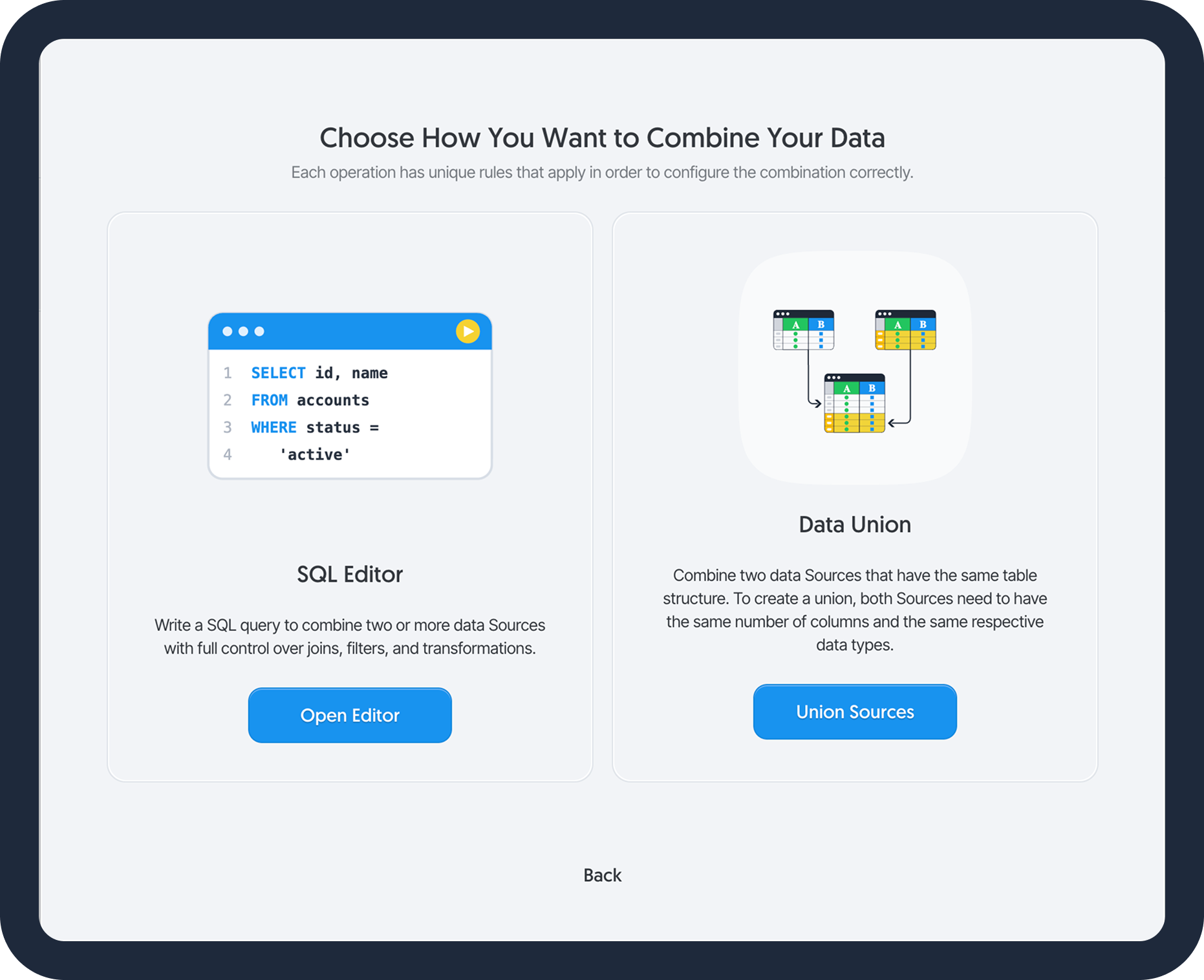
- Choose one of the following:
- SQL Editor: Use this option for high-volume datasets, complex data transformations, or when you require the flexibility of custom SQL queries to join your data.
- Data Union: Use this option for straightforward use cases where you are merging datasets that already share an identical or highly similar schema without the need for custom logic.
SQL Editor
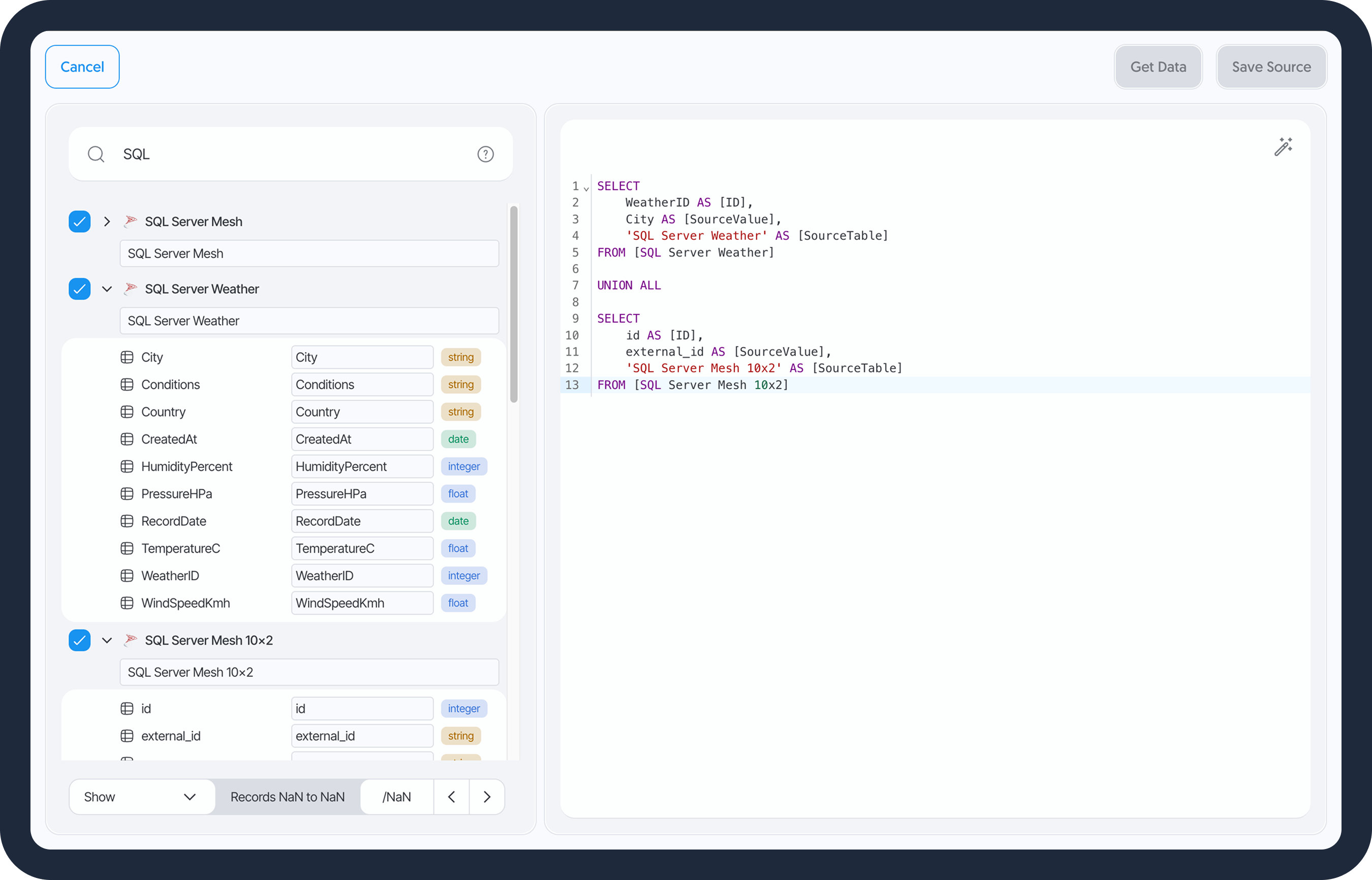
The SQL editor is self-service interface that allows users to write custom SQL queries for joining and merging multiple data sources. It is optimized for high-volume datasets and utilizes internal unique IDs to prevent queries from breaking if data sources or columns are subsequently renamed.
Add Multiple Sources to a Flow
- Select SQL Editor.
- Select all the sources you want to work with.
- Write your query using the provided table and column names.
- Click on Save Source in the top right corner.
- Add your data destination, finish configuring your flow, and click on Save Flow.
Ensure you've selected all the sources you are working with, otherwise the query fails.
Data Union
It operates similarly to the UNION operator in SQL.
Prerequisites
When creating your sources, make sure they have the exact same schemas, including the same:
- Number of columns
- Column names/labels
- Data types
Add Multiple Sources to a Flow
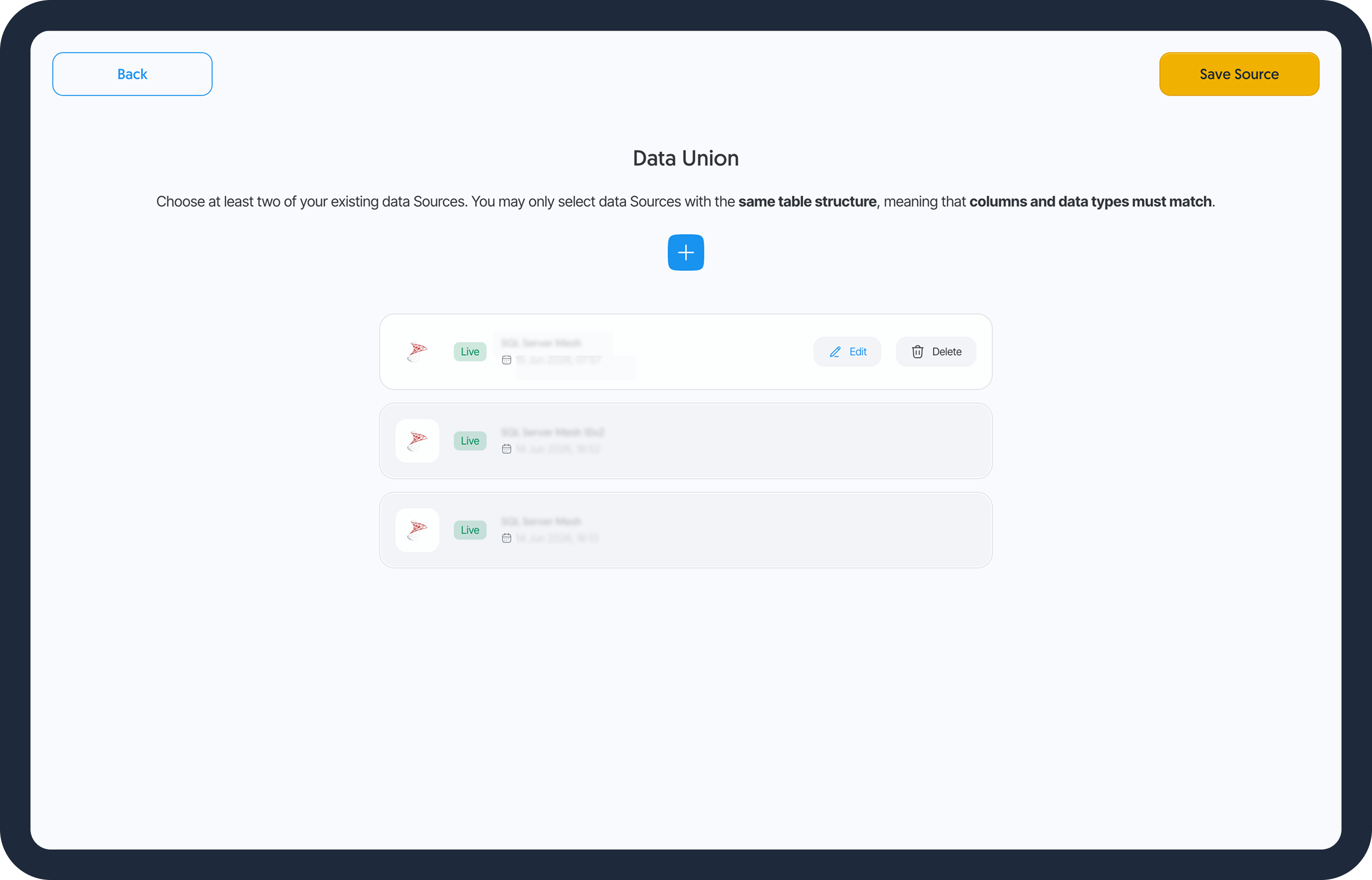
- Select Data Union.
- After you select your first source, only other compatible sources become selectable.
- Click on Save Source in the top right corner.
- Add your data destination, finish configuring your flow, and click on Save Flow.
Troubleshooting
Maximum Number of Sources
In Dataddo, it is possible to union up to 100 sources. If you need to combine more sources, it will be necessary to create multiple flows.
Different Data Types
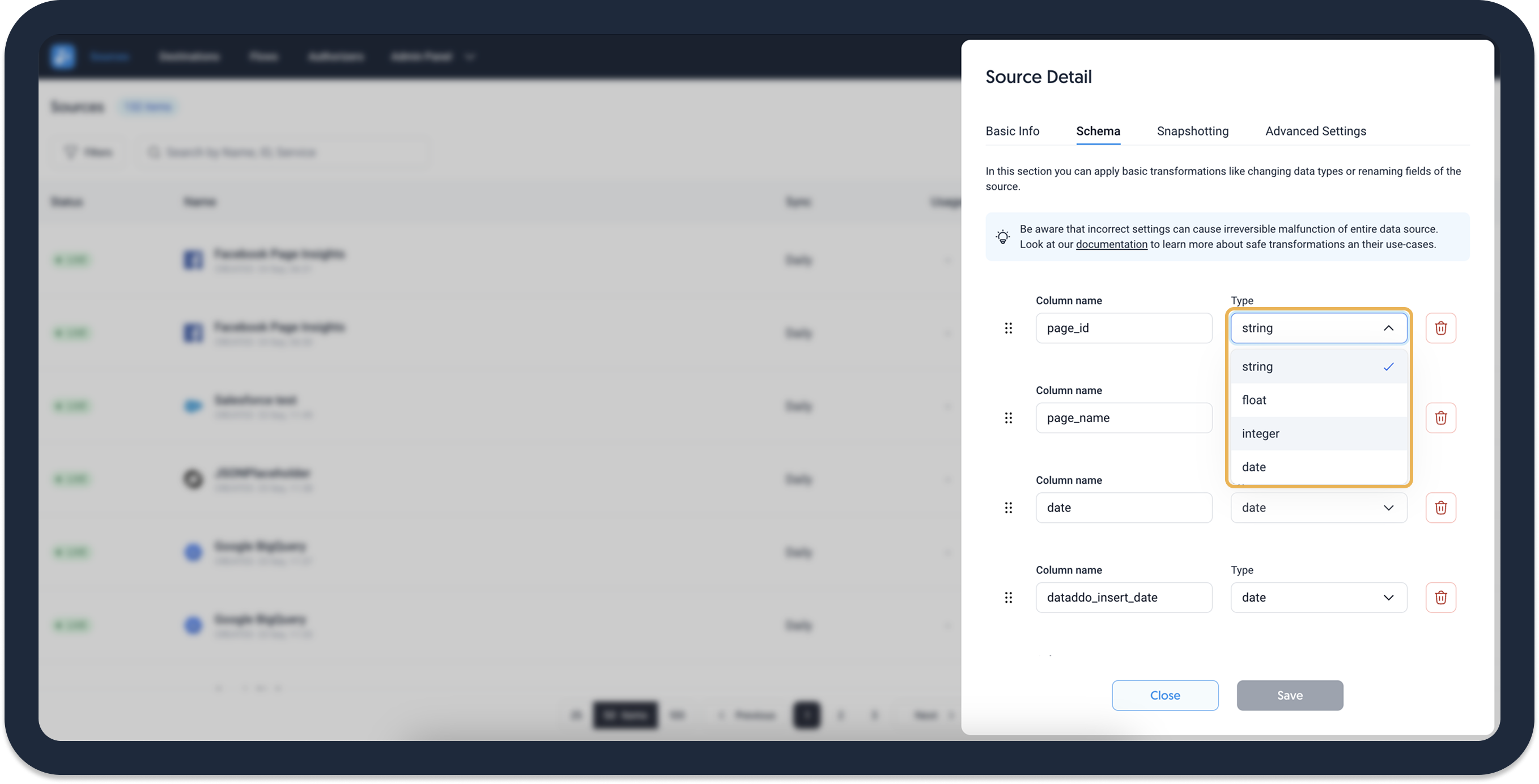
To check the data types of your source, click on the three dots, select Edit and navigate to the Data Types tab. If the data types don’t match (like in this example), you can change the data type of each column.
| Source 1 | Data type |
|---|---|
| Column A | Float |
| Column B | Integer |
| Source 2 | Data type |
|---|---|
| Column A | Integer --> change to Float |
| Column B | Integer |
SQL Query Fails
If your query fails and you're sure the syntax is correct, check the following:
- All the sources you're working with are selected from the sources picker.
- You're using the table and column names as provided in the picker. To see all available column, click the arrow on the left of your source.