Instagram Media refers to the visual content that users share on the Instagram platform, including photos, videos, and Stories. It enables individuals and businesses to create and share engaging visual content that connects with their audience and builds their brand on the platform.
Refer to Meta's official documentation to see all available endpoints from the Instagram Media API.
If you have multiple Instagram accounts and would like to extract the same data from all of them, it's possible through multi-account extraction. Contact our Solutions team to enable this feature.
Authorize Connection to Instagram Media
To authorize this service, use OAuth 2.0 to share specific data with Dataddo while keeping usernames, passwords, and other information private.
- On the Authorizers page, click on Authorize New Service and select your service.
- Follow the on-screen prompts to grant Dataddo the necessary permissions to access and retrieve your data.
- [Optional] Once your authorizer is created, click on it to change the label for easier identification.
Ensure that the account you're granting access to holds at least admin-level permissions. If necessary, assign a team member with the required permissions with the authorizer role to authenticate the service for you.
Instagram APIs allows data extraction only if your Instagram account is connected to a Facebook account. This will also make it easier for you to use all of the features available for businesses across the Facebook family of apps.
For more information, see our article on authorizers.
How to Create an Instagram Media Data Source
- On the Sources page, click on the Create Source button.
- Select the connector from the list and name your data source.
- On the Dataset step, select your dataset.DATADDO TIP
If you're unsure which dataset to select, use the search bar to look for datasets with the desired attributes or metrics.
- On the Account step select your authorizer from the drop-down menu.Didn't find your authorizer?
Click on Add new Account at the bottom of the drop-down and follow the on-screen prompts. You can also go to the Authorizers tab and click on Add New Service.
- On the Attributes and Metrics step, select the metrics and attributes you want to extract.
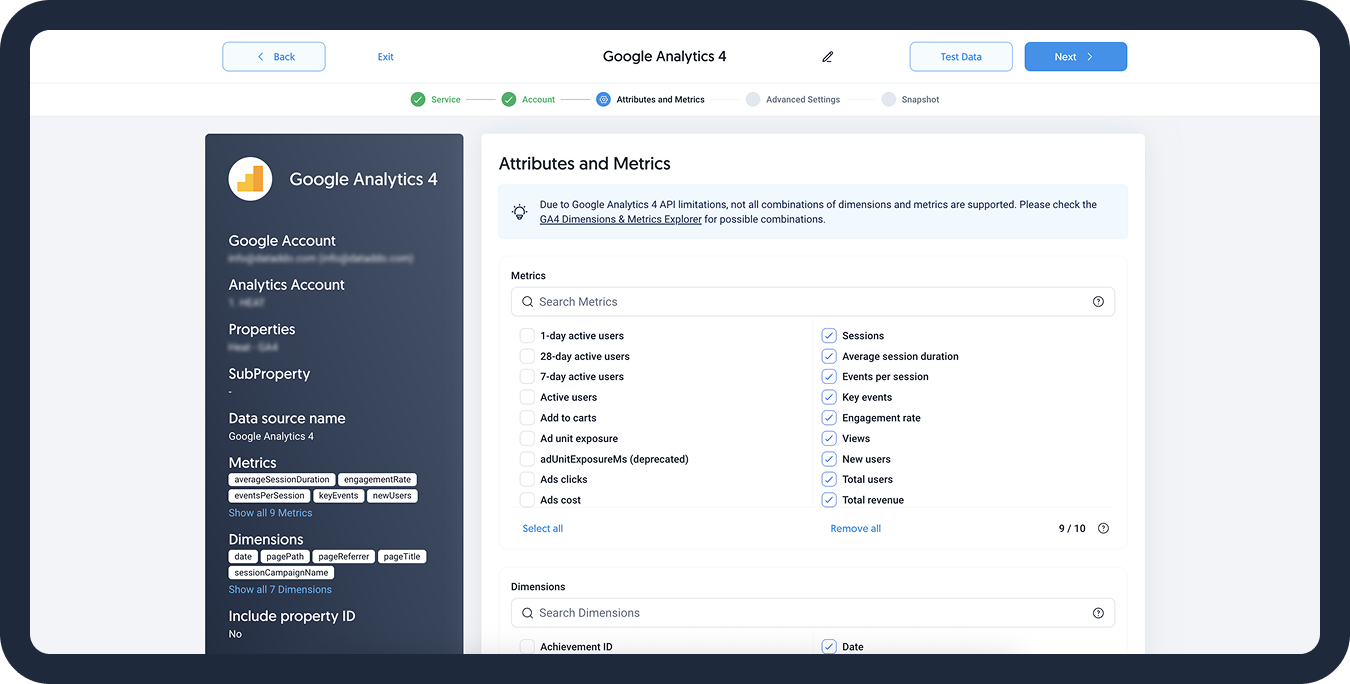
- On the Metadata step, select which metadata fields such as extraction time to add to your data.
- On the Snapshot step:
- Configure your sync frequency or click Show advanced settings to set the exact synchronization time.DATADDO TIP
If you need to load historical data, refer to the Data Backfilling article.
- [Optional] Enable the Allow Empty Data Extractions toggle to allow the extraction when no data is available.
- Configure your sync frequency or click Show advanced settings to set the exact synchronization time.
- In the top-right corner, click Test Data button to preview extracted data. You can adjust the date range for a specific time frame.
- Click on Save and congratulations, your new data source is ready!
Limitations
Facebook Account Required
In order to extract data from the Instagram API, it is required to have your Instagram account connected to a Facebook account. For more information, please visit the official Instagram API documentation.
No Instagram Reels Data
The Instagram API doesn't support data extraction from Instagram reels.
Troubleshooting
Data Preview Unavailable
No data preview when you click on Test Data might be caused by an issue with your source configuration. The most common causes are:
- Date range: Try a smaller date range. You can load the rest of your data afterward using manual data load.
- Insufficient permissions: Please make sure your authorized account has at least admin-level permissions.
- Invalid metrics, attributes, or breakdowns: You may not have any data for the selected metrics, attributes, or breakdowns.
- Incompatible combination of metrics, attributes, or breakdowns: Your selected combination cannot be queried together. Please refer to the service's documentation to view a full list of metrics that can be included in the same data source.
Related Articles
Now that you have successfully created a data source, see how you can connect your data to a dashboarding app or a data storage.
Sending Data to Dashboarding Apps
Sending Data to Data Storages
Other Resources